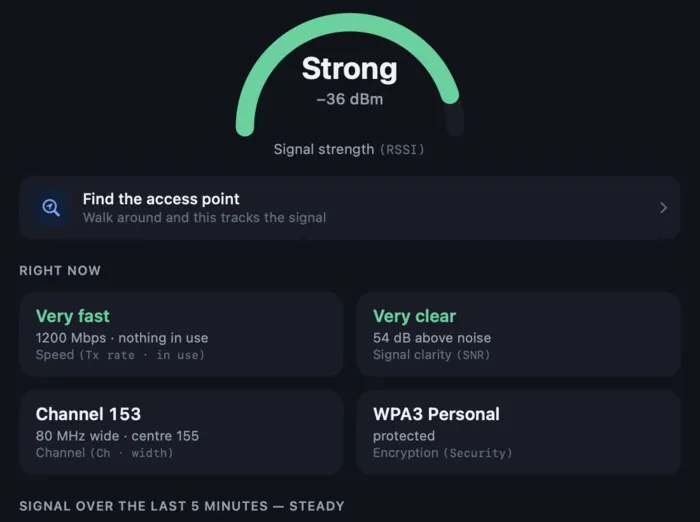
Overview
Signal, background noise, clarity, speed and transmit power, with a plain-English verdict over the top and the last five minutes charted underneath.
Free · Mac and iPhone
Spyglass WiFi keeps watch from your menu bar, records what went wrong, and tells you what changed in plain English, with no jargon.
Coming to the Mac App Store Coming to the App Store
Free. No account, no ads, no analytics, nothing uploaded.
“It was working an hour ago.”
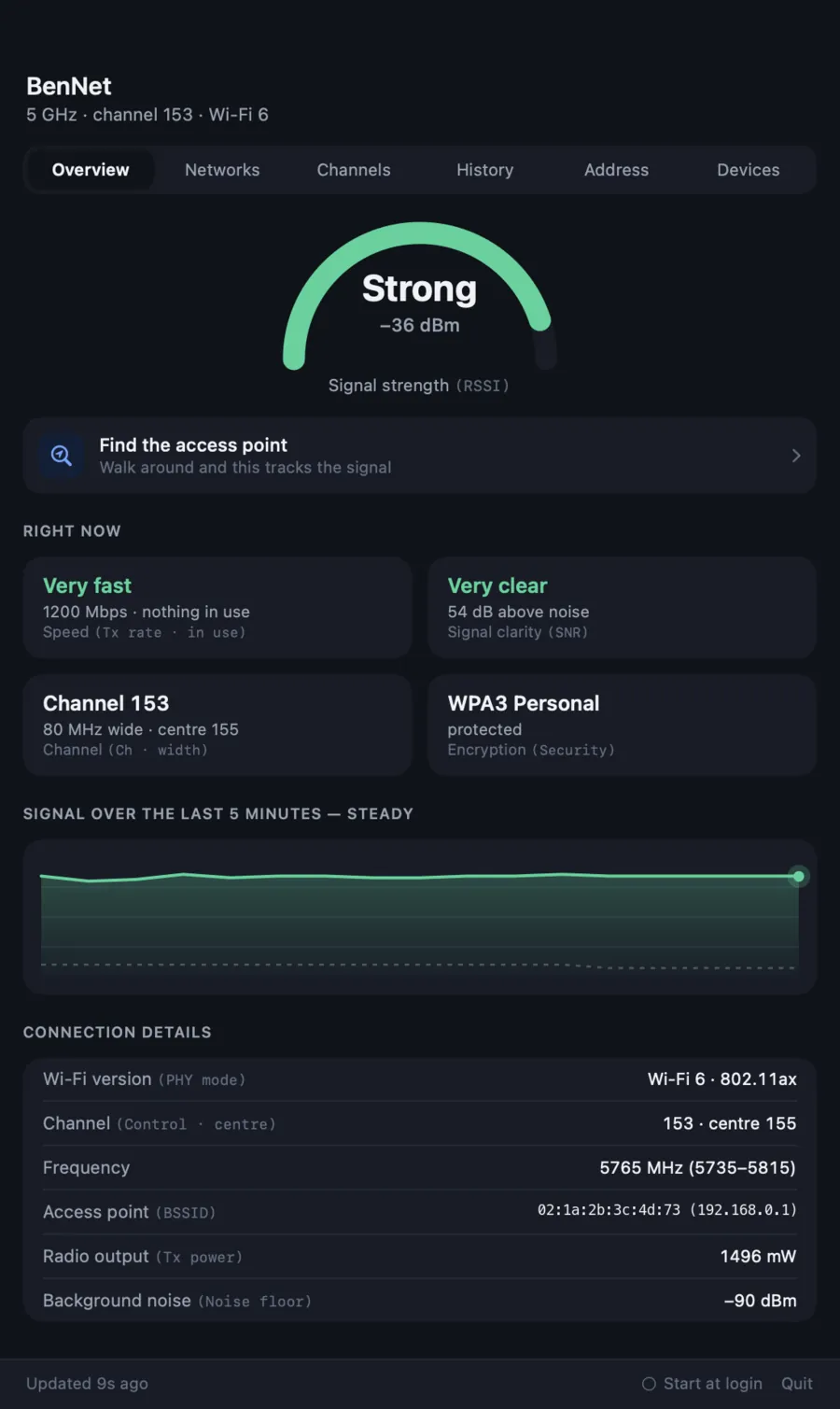
All noticeable change to signal, noise, speed and channel crowding is tracked, and explained in human terms.
Around 1200 → 286 Mbps for the last minute. Other people's networks are sharing your airwaves. They account for about 86% of the signal on your channel, which could explain it. This is about neighbouring networks, not the devices in your home.
Other networks now account for about 61% of the signal here, up from 22%. A neighbour's access point moved onto your channel.
Around −78 dBm for the last few minutes, with no sudden drop behind it. A decline this gradual usually means distance. Something moved, or something new is in the way.
Kept for seven days on your Mac. Never uploaded.
No Dock icon and no window in the way. Just the current signal in dBm next to the clock, green, amber or red. Click it for the rest.
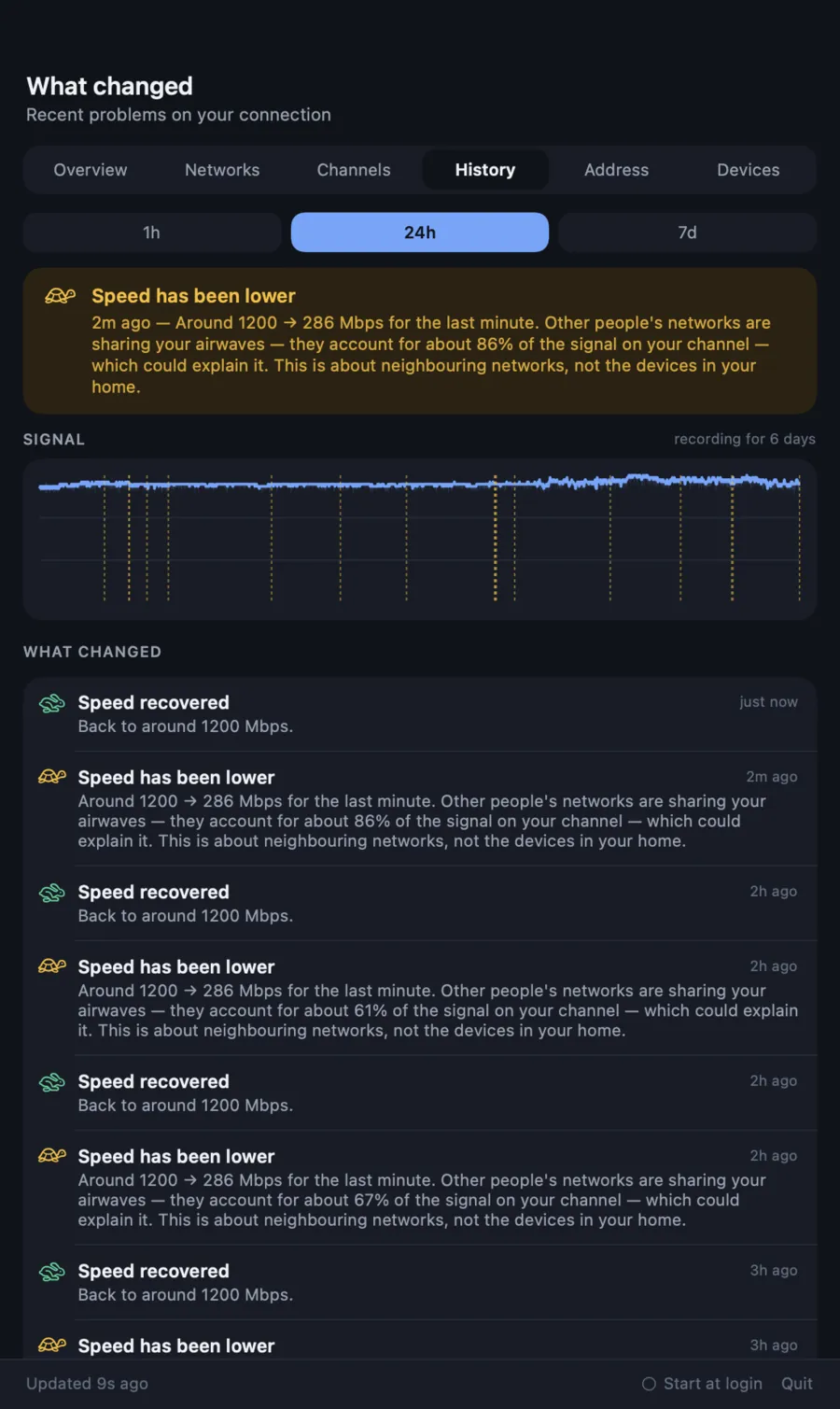
Signal, background noise, clarity, speed and transmit power, with a plain-English verdict over the top and the last five minutes charted underneath.
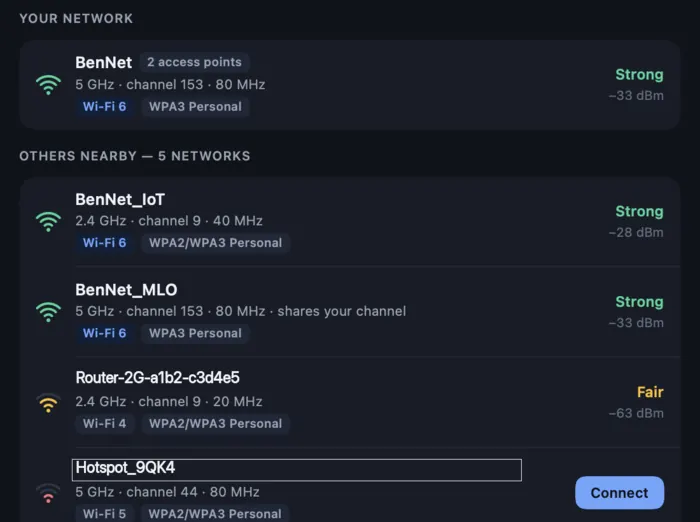
Every network in range, with band, channel width, Wi-Fi generation and encryption, Wi-Fi 7 included.
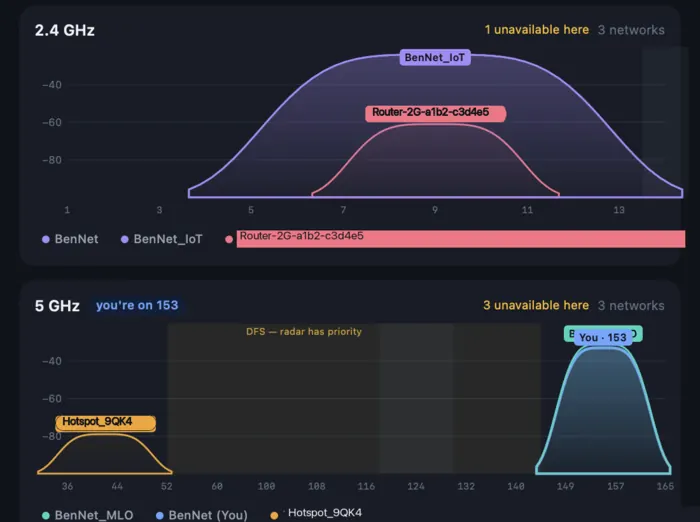
Both bands drawn as a spectrum, so you can see who you are sitting on top of, and which channel is actually free.
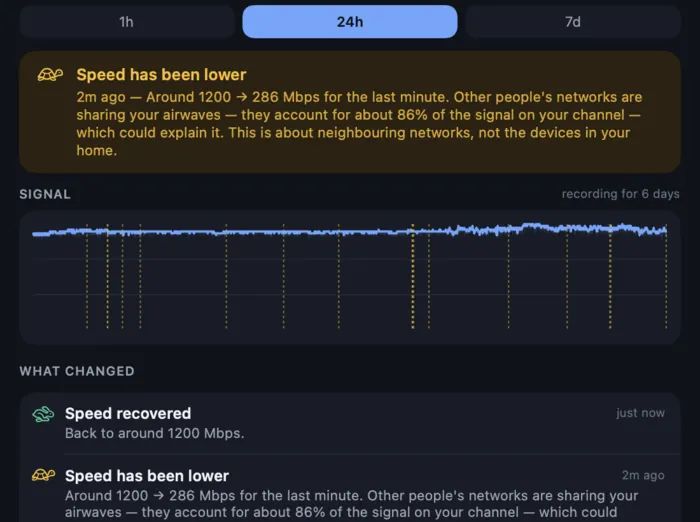
Seven days of what changed, and what it means. The pane no other consumer Wi-Fi tool has, because none of them were running.
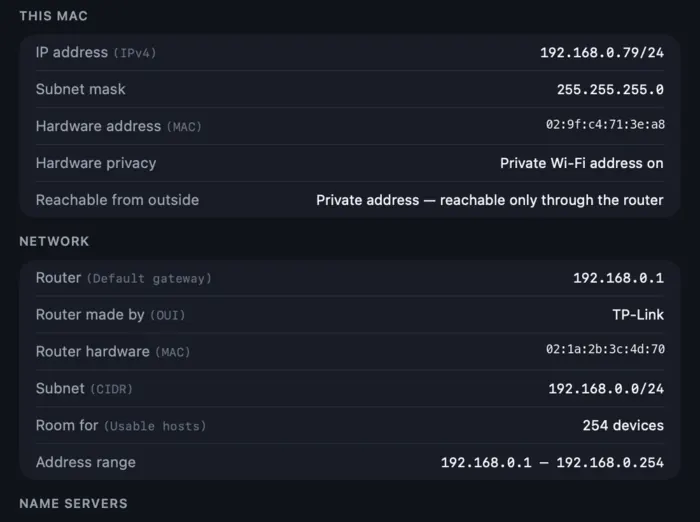
Your address, netmask, gateway, DNS servers and DHCP lease, without the terminal.
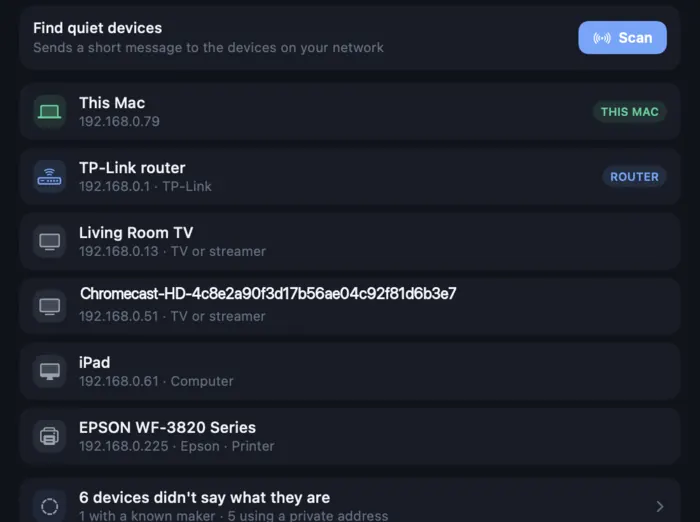
What is actually on your network. Quiet devices that advertise nothing still turn up, and it needs no root and no helper tool.
Warmer and colder as you walk, with a click that quickens as you close in. For finding the access point someone hid in a cupboard.
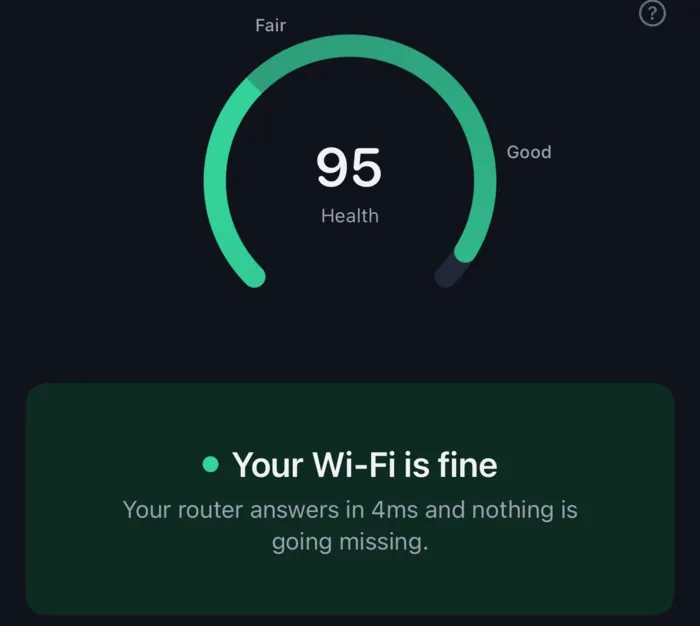
How the connection is behaving right now: a health score, a plain-English verdict, round-trip time and how much it varies.
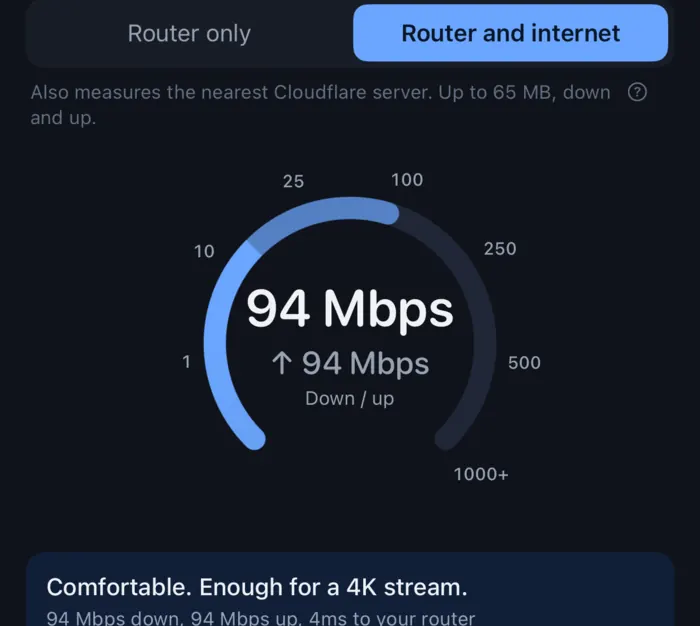
Forty pings to your router, always. A download and upload against Cloudflare only if you ask, with the server and the transfer size named on screen beside the switch.
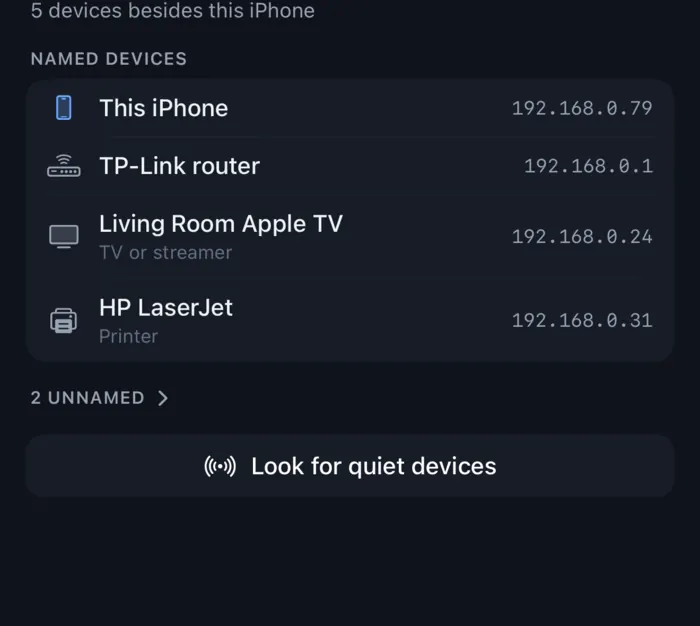
What is on your network, led by the names devices advertise for themselves, since nearly everything randomises its hardware address now.
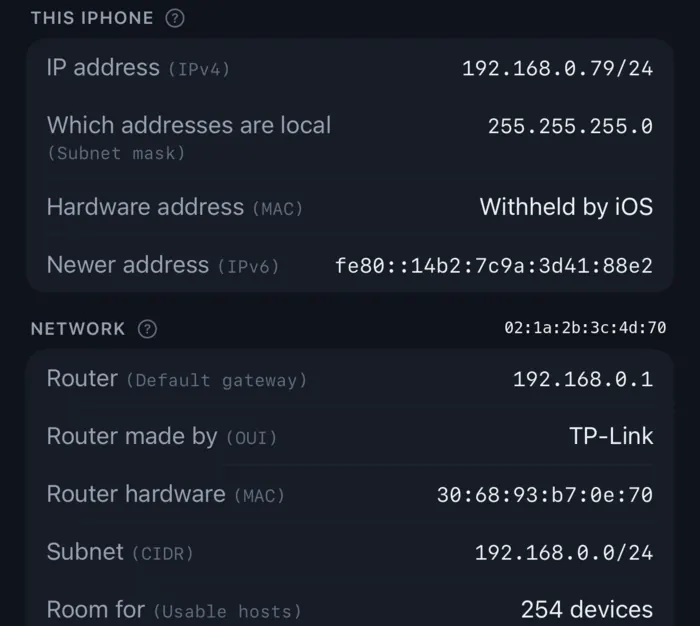
Your address, netmask, gateway, DNS servers and route. Where iOS withholds a value, it says so rather than showing a constant.
Both apps run in Apple's sandbox with the hardened runtime, use no private API and shell out to nothing. There is no account, no sign-in, no analytics and no advertising. Readings, the seven-day history and your addressing stay in the app's own container on your device, and there is an Erase button.
Two permissions get asked for, Location and local network access, and both are refusable. Denying either leaves the app working. It says what is hidden rather than looking broken.
The full policy is on the privacy page. It is short.